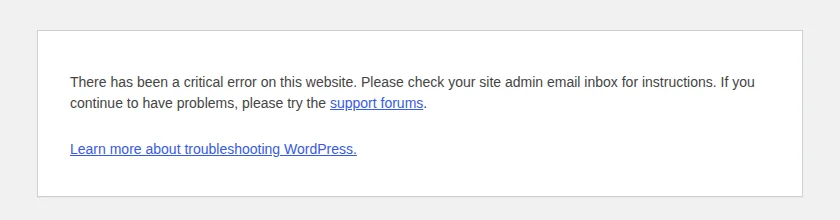
You updated a plugin, reloaded your site, and now you see "There has been a critical error on this website." Your visitors see it too. The dashboard may be locked out as well.
Take a breath. This is one of the most fixable WordPress problems, and it is rarely the disaster it looks like. The message means one plugin (or theme) crashed PHP. Your posts, pages, orders, and form entries are stored separately in the database, and they are almost always fine. This guide walks through the recovery in the order we use it on client sites, with screenshots of each screen, so you can fix it without making it worse.
TL;DR
- The error means one plugin or theme crashed PHP. Your content and database are almost always untouched, and it is usually fixable in minutes.
- Fastest fixes, in order: (1) open the recovery email WordPress sent to the admin address and deactivate the paused plugin, (2) if there is no email, rename that plugin’s folder over FTP or your host’s File Manager, (3) read
wp-content/debug.logto see what really failed. - Do not restore an old backup, delete wp-content, or reinstall WordPress as a first move. Those can erase orders, form entries, and posts.
- Site down and no time to experiment? Hire us today: a Quick Fix is $175, and we quote before we touch anything.

What the "critical error" message actually means
Before WordPress 5.2, a fatal PHP error in a plugin usually produced a blank white page: the infamous white screen of death. Since 5.2, WordPress has had fatal error protection. It catches the crash, shows a plain message instead of leaking file paths to the public, pauses the plugin or theme that caused it, and emails the site administrator a way back in called recovery mode.
The wording changes depending on where you see it. These are the four messages in WordPress core, and each one tells you something:
| Where you see it | What it says | What it tells you |
|---|---|---|
| Public pages | "There has been a critical error on this website." plus a "Learn more about troubleshooting WordPress" link | A fatal error happened during a normal page load. |
| wp-login.php and wp-admin | "…Please check your site admin email inbox for instructions. If you continue to have problems, please try the support forums." | Recovery mode is available. Check the admin inbox (and spam) for the recovery email. |
| Multisite networks | "…Please reach out to your site administrator, and inform them of this error for further assistance." | Recovery is handled by the network administrator, not by individual site owners. |
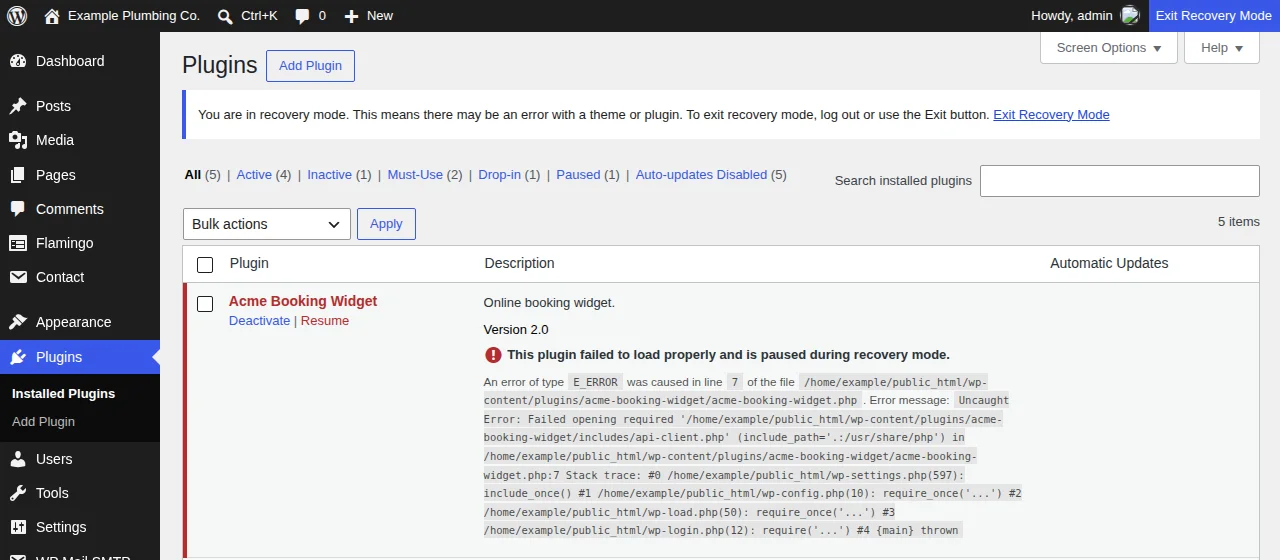
| After you log in through recovery mode | "…putting it in recovery mode. Please check the Themes and Plugins screens for more details." | You are in a safe session. The Plugins screen names the paused plugin and shows the error. |
Before you touch anything
- Stop updating. Do not click through the rest of the update list to "see if it fixes itself". Every extra change makes the cause harder to find
- Write down what changed. Which plugin updated, roughly when, and whether WordPress did it automatically. WordPress usually emails the admin when an automatic update runs
- Take a backup of whatever you can reach. Use your host’s backup tool, or copy the wp-content folder and export the database from phpMyAdmin. Do not overwrite your last good backup
- Find your hosting login. You may need File Manager, SFTP, or SSH access for Step 2
Step 1: Use the recovery mode email
When the error first occurs, WordPress emails the administrator. The message names the plugin, includes the error details, and contains a one-time link. This is the safest way back in, because WordPress logs you into a special session where the broken plugin stays paused.
This is the actual email WordPress generated on our test site:
Subject: [Example Plumbing Co.] Your Site is Experiencing a Technical Issue
WordPress has a built-in feature that detects when a plugin or theme causes a fatal error on your site, and notifies you with this automated email. In this case, WordPress caught an error with one of your plugins, Acme Booking Widget.
…If your site appears broken and you can’t access your dashboard normally, WordPress now has a special “recovery mode”. This lets you safely login to your dashboard and investigate further.
To keep your site safe, this link will expire in 1 day. Don’t worry about that, though: a new link will be emailed to you if the error occurs again after it expires.
A few facts worth knowing, all from WordPress core:
- It goes to the Administration Email Address in Settings → General, unless
RECOVERY_MODE_EMAILis set in wp-config.php - The link lasts one day by default
- WordPress sends at most one recovery email per 24 hours, so if you hit the error several times, only the first one triggers an email. Search your inbox for the earlier message instead of waiting for another
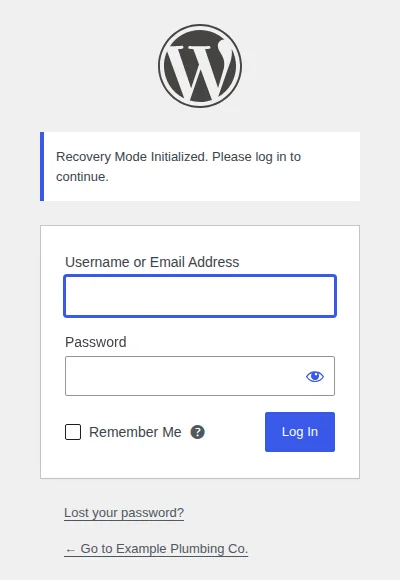
Click the link, log in, and you will see "Recovery Mode Initialized" on the login screen:
After you log in, open Plugins. The broken plugin is highlighted in red with the exact error, and the bar at the top reads "Exit Recovery Mode":
Click Deactivate on the paused plugin. Do not click Resume until the cause is fixed, because Resume turns the plugin back on and the crash returns.
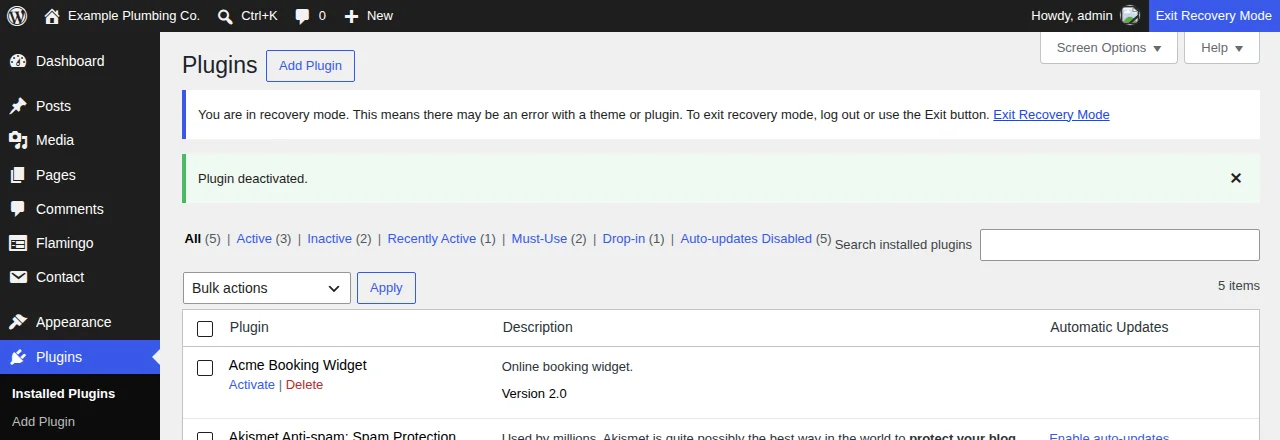
Click Exit Recovery Mode, then load your homepage in a private window. On our test site it went from an HTTP 500 error back to a normal 200 page immediately. Your site is online again, minus whatever that plugin did. Jump to Step 4 to replace it with a working version.
No email? The usual reasons are an outdated admin address, the spam folder, a site that cannot send email at all (the same root cause as forms that stop emailing), or an email already sent in the last 24 hours. Go to Step 2.
Site still down?
If you cannot get in, or you would rather not experiment on a live business site, Sparks Motion can diagnose and fix the critical error. A Quick Fix is $175, and we tell you what is wrong and what it costs before we touch anything.
Step 2: Rename the plugin folder (no dashboard needed)
WordPress loads plugins from folders inside wp-content/plugins. If a plugin’s folder is missing, WordPress simply treats it as inactive. So you can switch a plugin off without the dashboard by renaming its folder. Nothing is deleted.
Use whichever access you have: your host’s File Manager (cPanel, Plesk, and most managed hosts have one), an SFTP client such as FileZilla or Cyberduck, or SSH:
cd wp-content/plugins
mv acme-booking-widget acme-booking-widget-off
Not sure which plugin it was? The recovery email names it. Otherwise look for the folder that changed most recently, because an updated plugin’s folder is usually the newest one. Over SSH, ls -lt sorts by modified time with the newest first:
ls -lt wp-content/plugins | headIf you still cannot tell, rename the whole plugins folder to plugins-off. If the site loads, a plugin is the cause. Rename the folder back to plugins, then log in and reactivate plugins one at a time, reloading the site after each. The one that brings the error back is your culprit. WordPress deactivates plugins whose files disappeared, so you do have to reactivate them yourself.
Step 3: Read the real error in debug.log
The public message hides the cause on purpose. To see it, add three lines to wp-config.php, above the line that says "That’s all, stop editing":
define( 'WP_DEBUG', true );
define( 'WP_DEBUG_LOG', true );
define( 'WP_DEBUG_DISPLAY', false );
WP_DEBUG_LOG writes errors to wp-content/debug.log, and WP_DEBUG_DISPLAY set to false keeps them off the public page. Reload the broken page, then open the log. This is the real entry from our test (paths shortened):
PHP Warning:  require_once(/home/example/public_html/wp-content/plugins/acme-booking-widget/includes/api-client.php): Failed to open stream: No such file or directory in .../acme-booking-widget.php on line 7
PHP Fatal error:  Uncaught Error: Failed opening required '.../acme-booking-widget/includes/api-client.php' in .../acme-booking-widget.php:7
That is a half-finished update: version 2.0 of the plugin expects a file that never arrived. Read the first Fatal error line and look for three things: the plugin folder name in the path, the file and line number, and the error type. Here is how to read the most common ones:
| What the log says | What it usually means | What to do |
|---|---|---|
| Failed opening required … No such file or directory | The update did not finish copying files (timeout, full disk) or a file went missing. | Reinstall the plugin from a fresh zip. Check free disk space. |
| Call to undefined function … / Class "…" not found | The plugin needs another plugin or library that is missing or deactivated, or it was written for a different PHP or WordPress version. | Reactivate the plugin it depends on (WooCommerce add-ons need WooCommerce), update both, or roll back. |
| Allowed memory size of 41943040 bytes exhausted | PHP ran out of memory. 41,943,040 bytes is 40 MB, the WordPress default limit for a single site. | Add define( 'WP_MEMORY_LIMIT', '256M' ); to wp-config.php or ask your host to raise it. |
| Cannot redeclare function … | Two plugins, or two copies of one plugin (for example plugin and plugin-1 folders), define the same function. | Delete the duplicate copy. Deactivate one of the conflicting plugins. |
| Parse error: syntax error, unexpected … | A PHP file is broken: a truncated upload, or a typo in a code snippet someone pasted in. | Reupload the plugin, or undo the last code change. |
| Uncaught TypeError / Unsupported operand types (after a PHP upgrade) | Older plugin code that newer PHP versions no longer tolerate. | Update the plugin. If it is abandoned, replace it. See how to spot an abandoned plugin. |
| Maximum execution time of 30 seconds exceeded | A task (an import, a backup, an update) ran too long for the server. | Raise max_execution_time with your host, or run the task in smaller batches. |
When you are done, set WP_DEBUG back to false and delete debug.log. It is a plain text file in a predictable location, it contains file paths and sometimes more, and on many setups anyone can open it in a browser.
Step 4: Get a working version of the plugin
You now know which plugin failed and why. Pick the option that matches the cause:
- Fresh reinstall of the same version. Fixes half-finished updates. After a backup, delete the plugin from the Plugins screen, then add it again from Plugins → Add New (or upload a zip from the vendor). Your settings are stored in the database, so they normally survive
- Roll back to the previous version. On the plugin’s wordpress.org page, scroll to Advanced View and use the Previous Versions menu to download the last version that worked, then upload it. The free WP Rollback plugin does the same from your dashboard. For premium plugins, download the older zip from the vendor’s site
- Wait for a patch. Check the plugin’s changelog and support forum. If other people report the same crash, the author usually ships a fix within days. Until then, stay on the old version and use the Plugins screen’s Disable auto-updates link for that plugin
- Replace the plugin. If the author has stopped maintaining it, move on rather than patching code you do not own
WordPress also has a safety net, but it is not a guarantee. Since 6.3 the updater keeps a temporary copy of the old plugin in wp-content/upgrade-temp-backup and can restore it if an update fails midway, and newer versions can roll back an automatic update that crashes the site. A plugin that passes that check and fails later, or only on one page, can still reach you.
Step 5: If it was not the plugin you just updated
If renaming the plugins folder did not bring the site back, the cause is somewhere else:
- Your theme. Rename the active theme’s folder in
wp-content/themes. WordPress falls back to a default theme (such as Twenty Twenty-Five) if one is installed - A PHP version change at your host. WordPress refuses to install a plugin update that needs a newer PHP version than you run, but a host upgrading PHP can break older plugins that were fine yesterday. Check the PHP version selector in your hosting panel. Dropping back one minor version can get you online while you update or replace the plugin
- An interrupted core update. That shows "Briefly unavailable for scheduled maintenance", not a critical error. Delete the
.maintenancefile in your site’s root folder and re-run the update - A full disk or exhausted memory. Both show up in debug.log, and your host can confirm
- A hack. Unfamiliar admin users, files you did not upload, or spam pages mean a different problem. Read what to do if your WordPress site was hacked before you delete anything
Our broader step-by-step guide to fixing a broken WordPress website covers database errors, 500 errors, 404s, and login lockouts.
What not to do
- Do not restore a week-old backup without exporting what has happened since. Orders, form entries, and comments received after that backup would be erased
- Do not delete the wp-content folder or the plugin’s database tables. That is where your uploads and data live
- Do not reinstall WordPress core as the first move. The cause is almost never core, and the core files were fine
- Do not set permissions to 777. It does not fix a fatal error and it opens a security hole
- Do not leave WP_DEBUG_DISPLAY on on a live site. Visitors would see file paths and error details
After the site is back: a five-minute check
- Load the homepage and two or three inner pages in a private window
- Log in to wp-admin and open Plugins and Site Health
- Send a test through your contact and booking forms. Email problems often hide behind a "working" page (see our Contact Form 7 troubleshooting guide)
- Test checkout, if you sell anything
- Clear your caching plugin, your host’s cache, and your CDN so visitors stop seeing an old error page
How to keep this from happening again
- Back up before every update, to somewhere other than the same server, and test that you can restore
- Update on a staging copy first for any site that makes you money. Many hosts offer one-click staging
- Update one plugin at a time and load a few pages after each, instead of clicking "update all"
- Keep the admin email current and read. It is the only way recovery mode reaches you. To send those emails somewhere specific, add
define( 'RECOVERY_MODE_EMAIL', 'you@yourdomain.com' );to wp-config.php - Check the "Requires PHP" and "Requires WordPress" lines on a plugin before major updates
- Delete plugins you do not use, and replace abandoned ones
- Monitor uptime with a service that checks for an HTTP 200 response, so you hear about errors before customers do
Our website maintenance checklist covers the routine, or you can hand it off with Sparks Care, where we handle updates, backups, and monitoring for you.
When to get help
Stop and call someone if you cannot reach hosting or FTP access, if the log points at core files or something you do not understand, if you see signs of a hack, or if every hour offline costs you customers. A critical error from one broken plugin is a $175 Quick Fix with us, covering diagnosis, repair, and testing. The WordPress emergency help page explains how it works, and the emergency guide covers what to leave alone while you wait. Send us the site address, the plugin you updated, the error text from the email or debug.log, and your hosting provider, and we will come back with a plan and a price.
Want it fixed today?
Tell us what you are seeing and what changed. We will tell you what is wrong and what it costs before we touch anything.
Frequently asked questions
Why does WordPress say "There has been a critical error on this website"?
A plugin, theme, or custom code hit a PHP fatal error, which is a problem so serious that PHP cannot keep running the page. WordPress catches it, shows this generic message instead of a blank screen, and hides the technical details from visitors. The error is almost always in code, not in your content or database.
How do I fix the critical error if I never got the recovery email?
Skip the email. Rename the folder of the plugin you just updated (wp-content/plugins/plugin-name) using your host's File Manager, SFTP, or SSH. WordPress treats a plugin whose folder is missing as inactive, and the site normally loads again. If you do not know which plugin it was, rename the whole plugins folder, confirm the site loads, then rename it back and reactivate plugins one at a time.
How long does the recovery mode link last?
By default the link in the recovery email is valid for one day, and WordPress sends at most one recovery email per 24 hours. If the link has expired, the error has to occur again after that window before a new email goes out, so use the FTP method instead of waiting.
Will I lose my content or settings?
Normally no. The error is thrown by PHP code, while your posts, pages, orders, and form entries live in the database and are untouched. The real risks come from panic moves: restoring an old backup over newer data, deleting the wp-content folder, or deleting database tables. Take a fresh backup first and change one thing at a time.
Is the critical error the same as the white screen of death?
They have the same cause, a PHP fatal error. Since WordPress 5.2, WordPress usually catches the error and shows the "critical error" message and a recovery email instead of a blank page. You can still see an empty white page when error display is off and WordPress cannot render its message, and debug.log will still record the real error.
Does a critical error hurt my Google rankings?
A short outage is rarely a lasting problem, but the site returns a server error (HTTP 500) while it is broken, and Google can crawl less or drop pages if server errors persist for several days. Fix it quickly, then confirm in Google Search Console that pages are being crawled normally again.
Can WordPress roll back a bad plugin update by itself?
Sometimes. Since WordPress 6.3 the updater keeps a temporary copy of the old plugin in wp-content/upgrade-temp-backup and can restore it when an update fails midway, and newer versions can also roll back an automatic plugin update that crashes the site. A plugin that works during the update check but fails later, or only on one page, can still slip through.
How much does it cost to have someone fix a critical error?
A critical error from one broken plugin is usually a $175 Quick Fix with Sparks Motion, which covers diagnosis, the repair, and testing. Hack cleanup and multi-problem repairs cost more, and we quote the price before touching anything.
How we tested this. Every screenshot and log excerpt in this guide was captured from a real WordPress 7.1.3 test site where we installed a plugin update that was missing a required file, then recovered it with the steps above. The recovery email text, the four error messages, the one-day link, and the once-per-day email limit come from WordPress core source and behaviour we observed. The business in the screenshots is made up. Last reviewed Oct 12, 2026 on WordPress 7.1.3 and PHP 8.4.